
Multi-Faktor-Authentifizierung einrichten
How to set up multi-factor authentication
Ziele:
Was ist eine Multi-Faktor-Authentifizierung (MFA)? MFA ist eine Sicherheitsmaßnahme, die von Nutzer_innen bei der Authentifizierung verlangt, ihre Identität anhand von zwei oder mehr Faktoren nachzuweisen. Faktoren können sein: etwas, dass die Nutzer/innen kennen (z.B. ein Passwort), etwas, dass sie besitzen (z.B. ein Handy) oder etwas, dass sie einzigartig macht (z.B. ein Fingerabdruck). MFA hilft, die Sicherheit der Moodle-Plattform zu verbessern, weil es für potentielle Angreifer_innen schwieriger ist, mehrere Faktoren zu kompromittieren.
In dieser Anleitung wird gezeigt wie die Multi-Faktor-Authentifizierung (MFA) für manuelle Moodle Konten eingerichtet wird und was dabei zu beachten ist.
Schwierigkeit: einfach
Gültig ab Moodle Version 5.1
Goals:
What is multi-factor authentication (MFA)? MFA is a security measure that requires users to verify their identity using two or more factors during the authentication process. Factors can include: something the user knows (e.g. a password), something they possess (e.g. a mobile phone) or something that makes them unique (e.g. a fingerprint). MFA helps to improve the security of the Moodle platform because it is more difficult for potential attackers to compromise multiple factors.
This guide shows how to set up multi-factor authentication (MFA) for manual Moodle accounts and what to bear in mind when doing so.
Difficulty: easy
Valid from Moodle version 5.1
7 Schritte:
Bin ich betroffen?
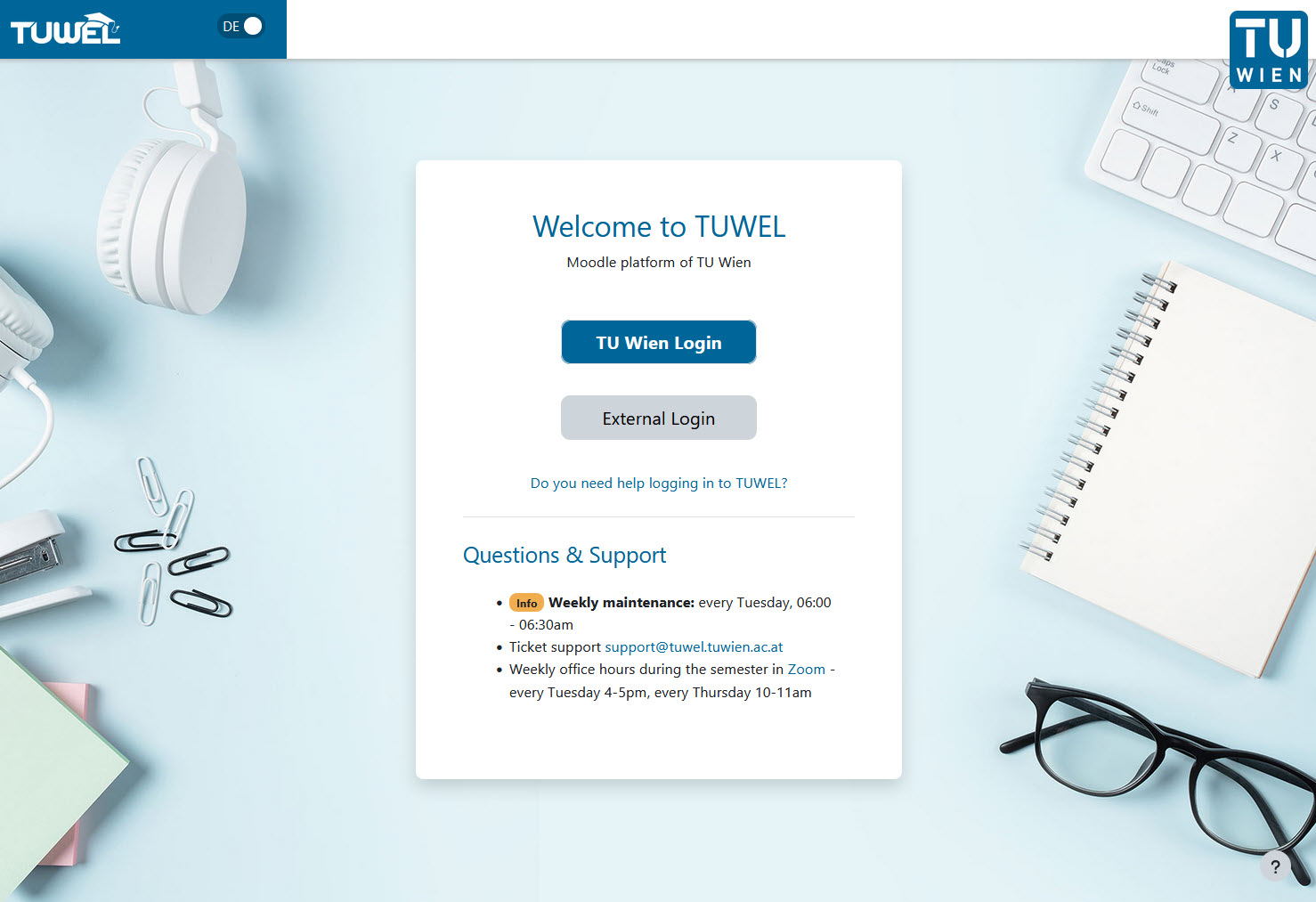
Sie sind betroffen, wenn Sie sich über den Button „Externer Login" anmelden. Aus Sicherheitsgründen erfordern manuelle Konten mit externem Login die Aktivierung über einen zweiten Faktor, wie etwa eine Authenticator-App oder einen Authentifizierungs-Token.
Dies ist nicht nur bei TUWEL gültig, sondern auch bei anderen Moodle-Plattformen der TU Wien, wie etwa ACEnet, edu etc. Die Screenshots zeigen TUWEL, aber die Bedienung sowie die Schritte sind auf den anderen Plattformen identisch.
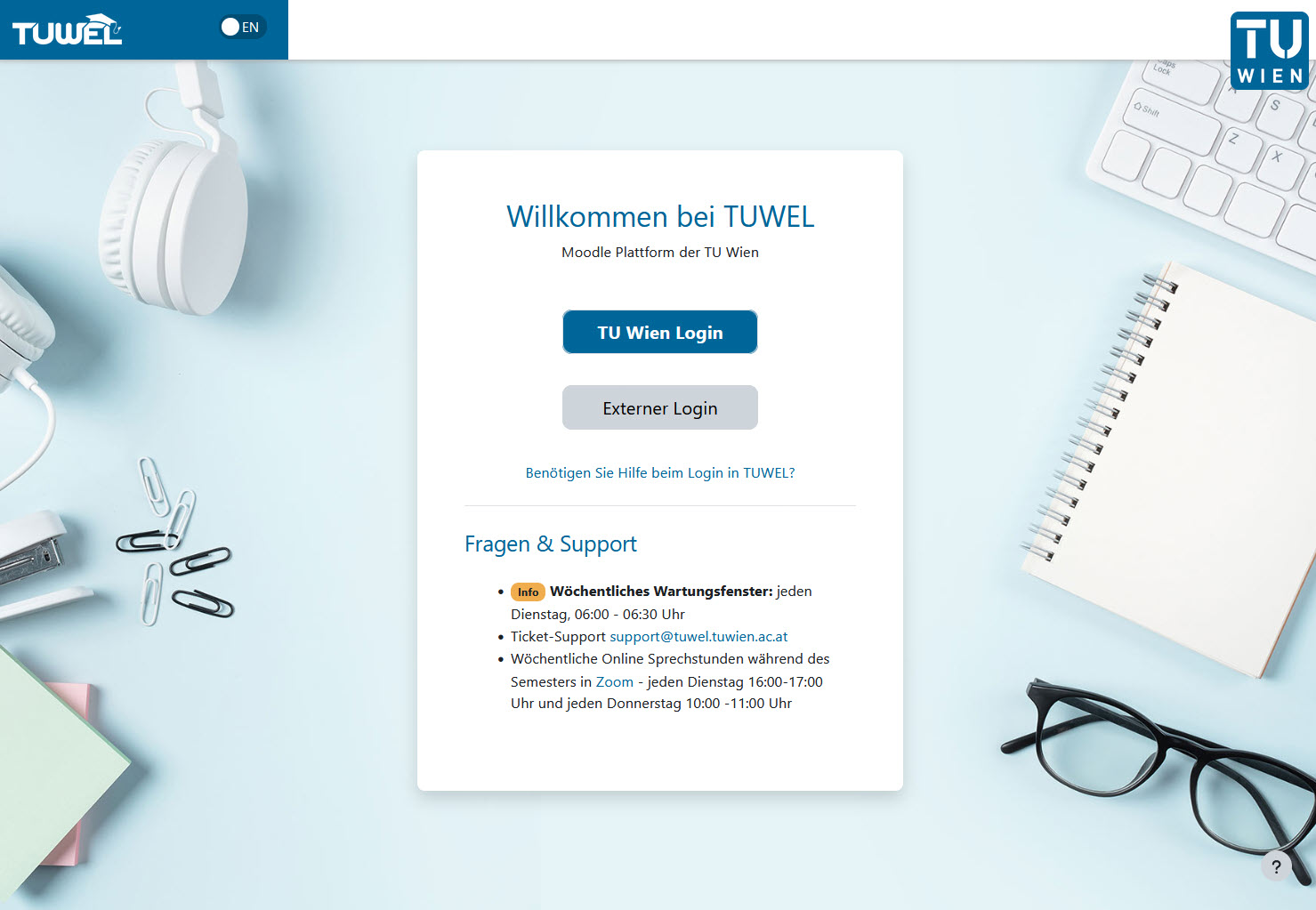
Am I affected?
This applies to you if you log in using the ‘External Login’ button. For security reasons, manual accounts using external login require two-factor authentication, such as an authenticator app or an security key.
This applies not only to TUWEL, but also to other Moodle platforms at TU Wien, such as ACEnet, edu, etc. The screenshots show TUWEL, but the navigation and steps are identical on the other platforms.
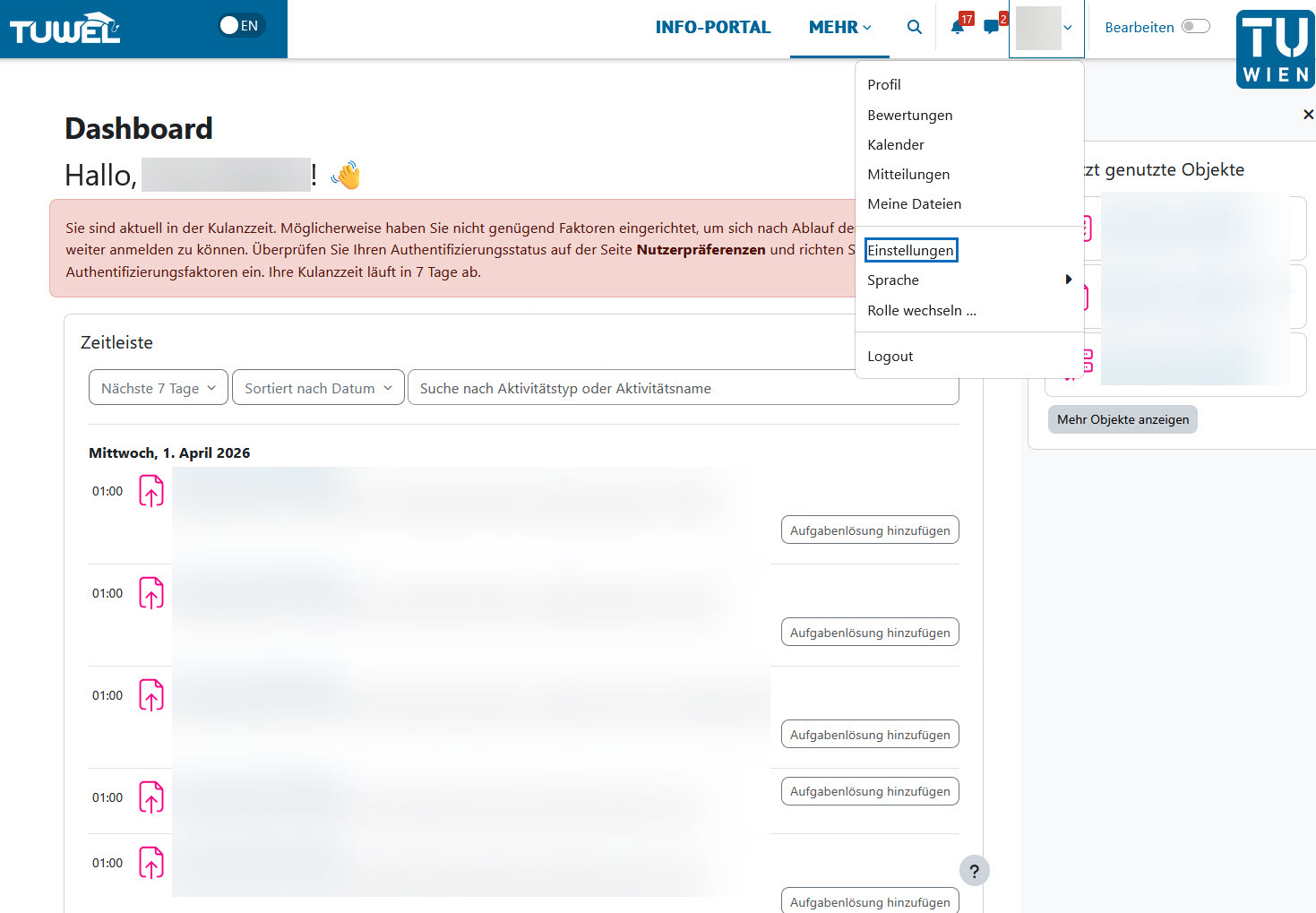
Profil-Einstellungen öffnen
Nach Ihrer ersten Anmeldung nach der MFA-Aktivierung durch die Administrator_innen haben Sie eine Kulanzzeit für die Umstellung. Es empfiehlt sich aber die Einstellung sehr zeitnah durchzuführen. Im ersten Schritt öffnen Sie in Ihrem Profil die „Einstellungen“.
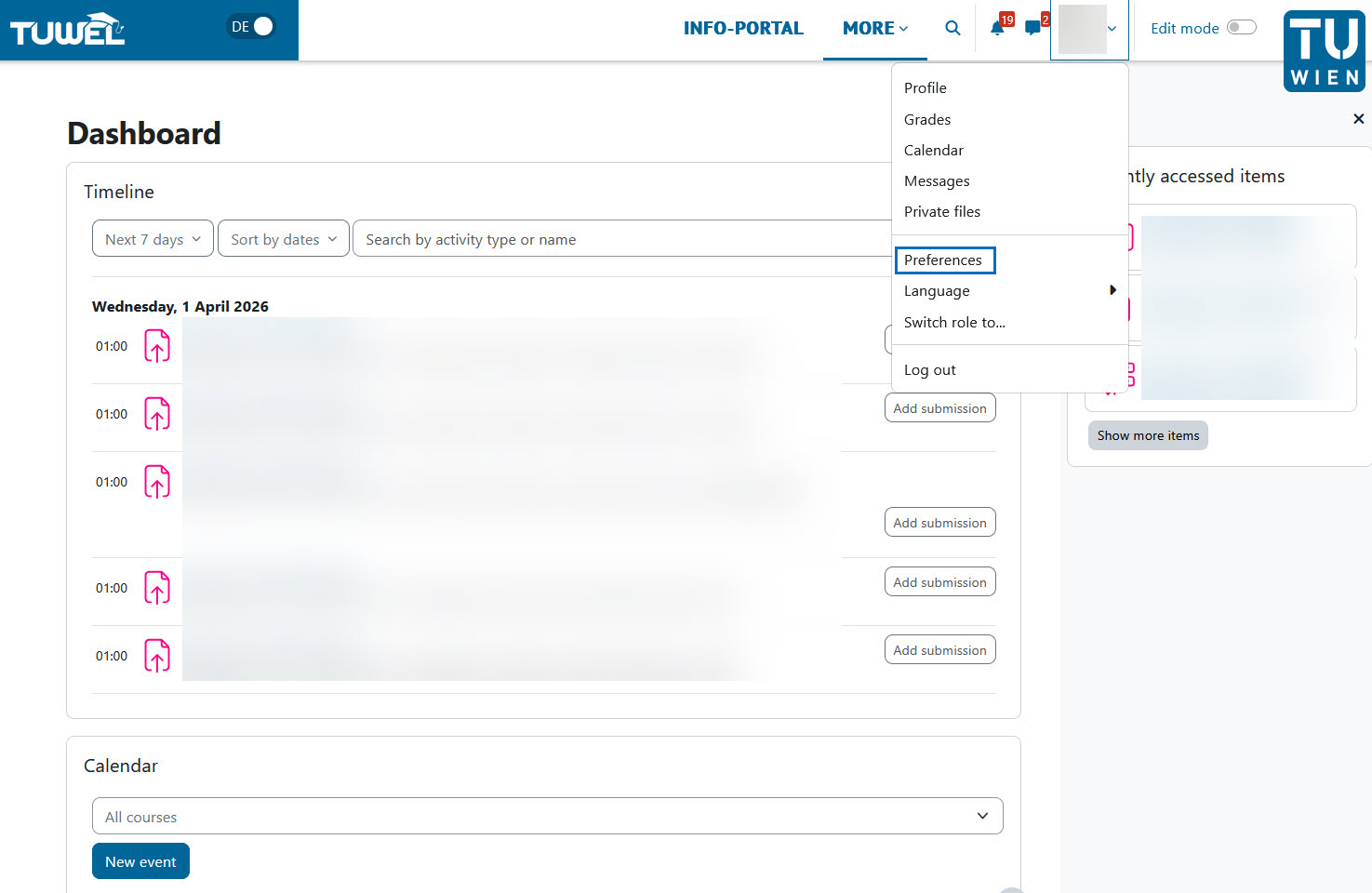
Open profile settings
Once you have logged in for the first time following the activation of MFA by the administrators, you will have a grace period to complete the process. However, we recommend that you make the change as soon as possible. To begin, open the ‘Preferences’ option in your profile.
Multi-Faktor-Authentifizierung öffnen
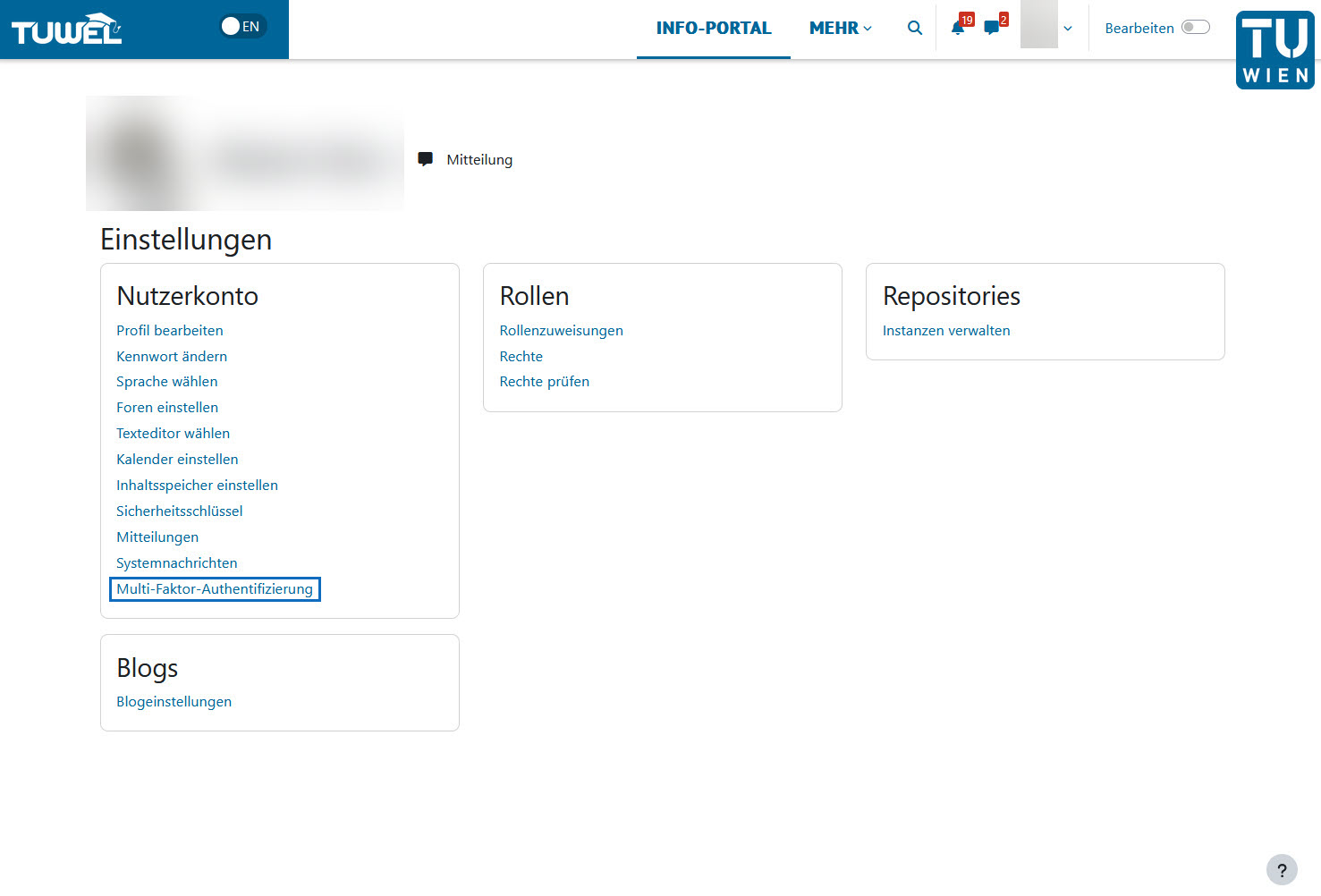
In den Einstellungen öffnen Sie „Multi-Faktor-Authentifizierung“. Drücken Sie auf diese Option, um die Konfiguration zu starten.
Open multi-factor authentication
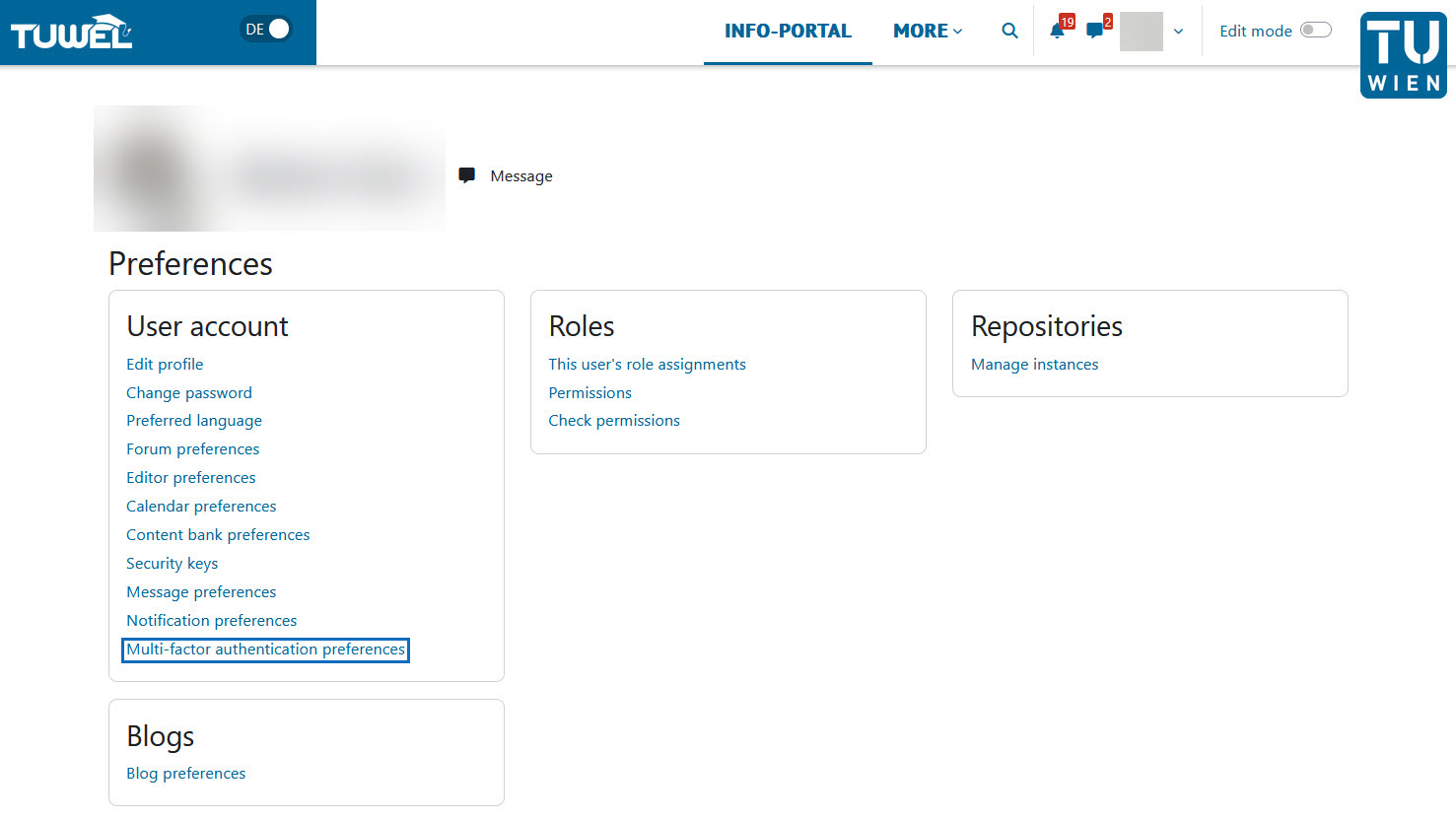
On the settings page, open ‘Multi-factor authentication preferences’. Click this option to start the setup.
Authentifizierungsmethode auswählen
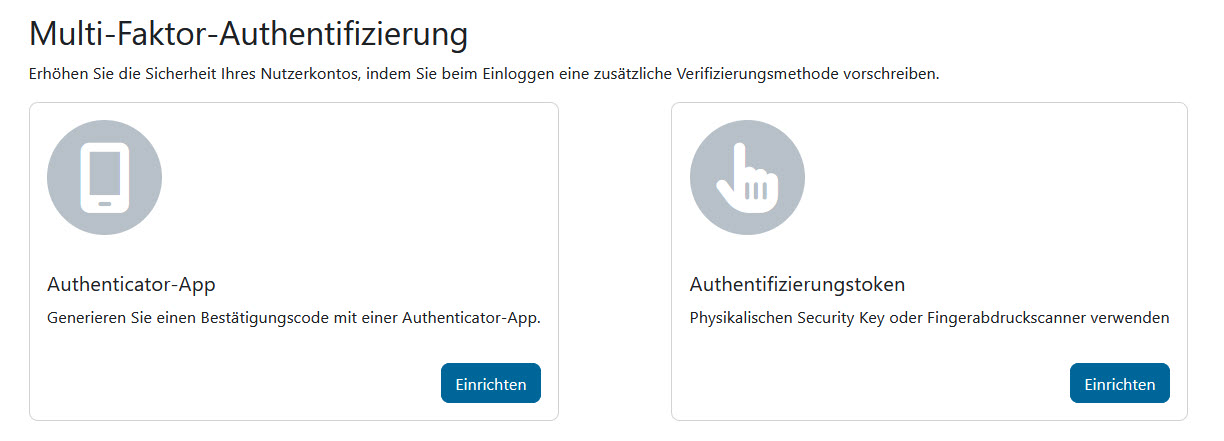
Ihnen werden zwei Optionen angeboten:
Die Authenticator-App oder den Authentifizierungs-Token.
Wir empfehlen die Authenticator-App, da diese einfacher zu handhaben ist. Im nächsten Abschnitt zeigen wir Schritt-für-Schritt, wie sie dies einrichten können.
Select authentication method
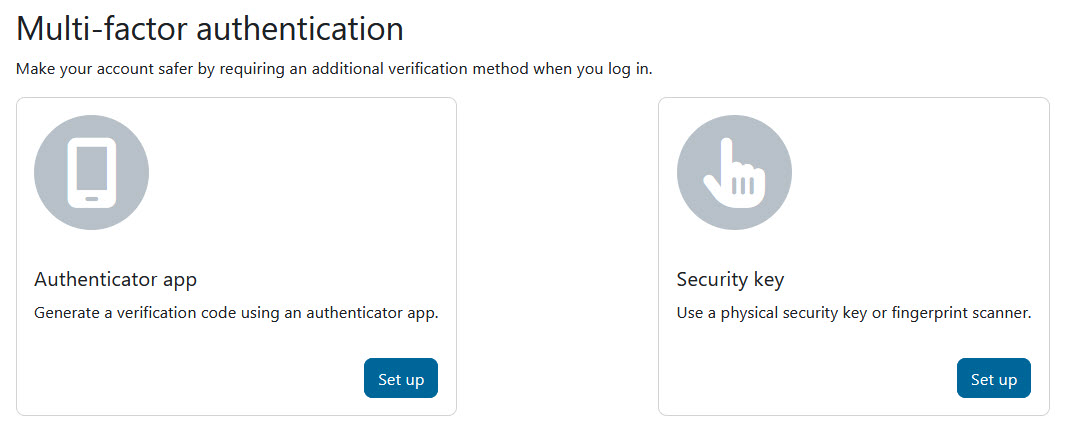
You will be offered two options:
The Authenticator app or the security key.
We recommend the Authenticator app, as it is easier to use. In the next section, we will show you step by step how to set this up.
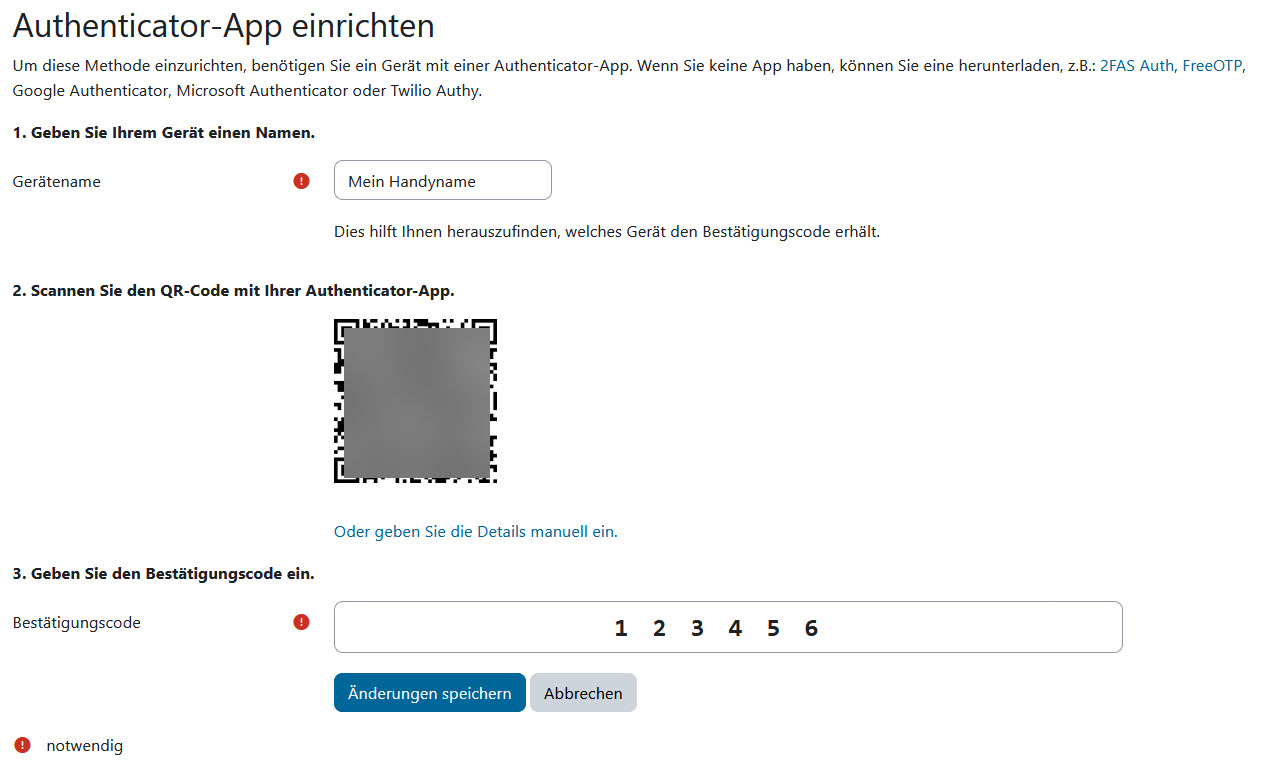
Authentifizierungs-App einrichten
Folgende Schritte sind zur Einrichtung der Authentifizierungs-App notwendig:
- Gerätenamen eintragen – Geben Sie einen aussagekräftigen Namen für das Gerät ein, auf dem Sie die Authentifizierungs-App nutzen (z. B. „Mein iPhone", „Diensthandy", „Tablet").
- QR-Code scannen – Öffnen Sie eine Authentifizierungs-App (z. B. Google Authenticator, Stratum, Microsoft Authenticator oder Authy) und scannen Sie den angezeigten QR-Code. Wenn Sie keine Authentifizierungs-App am Gerät installiert haben, ist diese aus den jeweiligen App-Stores zuerst herunterzuladen.
- Verifizierungscode eingeben – Geben Sie den 6-stelligen Code aus der App ein, um die Einrichtung abzuschließen.
- Bestätigung – Nach erfolgreicher Verifizierung ist MFA aktiviert. Bei jedem neuen Login ist nun der aktuelle Code aus der App des Geräts einzutragen.
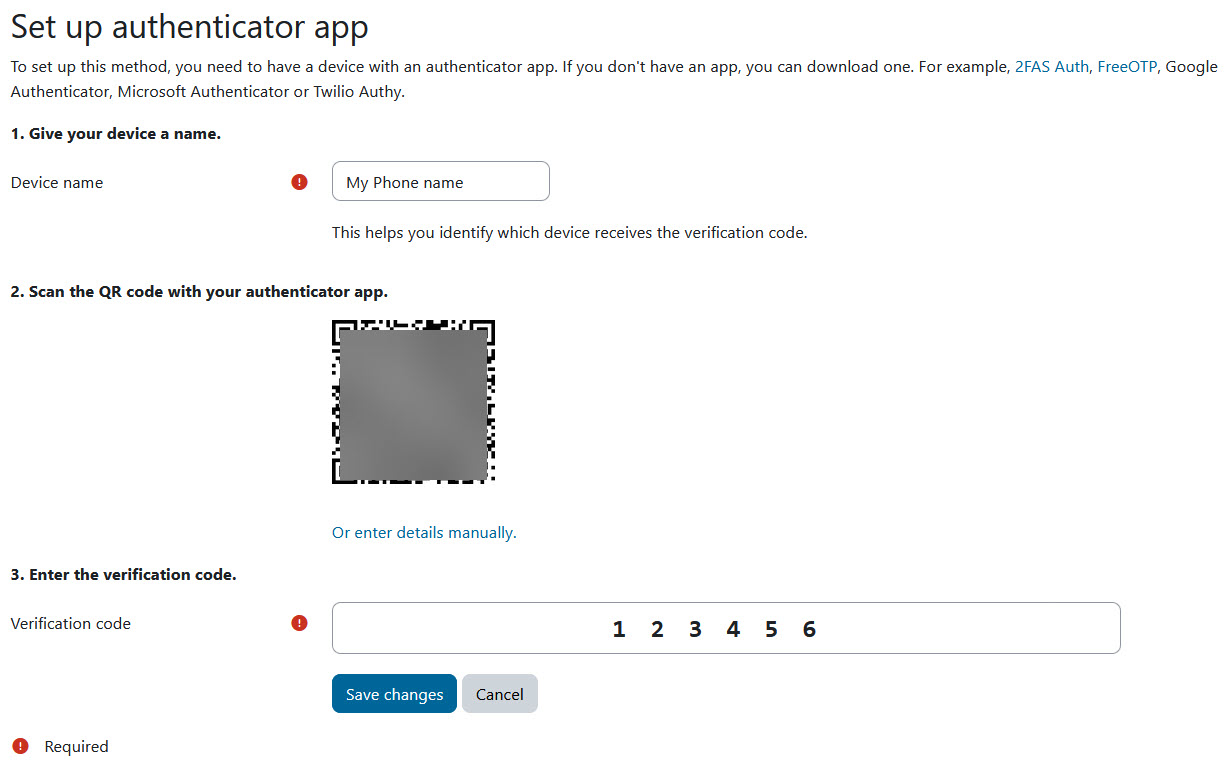
Configure the authentication app
The following steps are required to set up the authentication app:
- Enter the device name – Enter a descriptive name for the device on which you are using the authentication app (e.g. ‘My iPhone’, ‘Work mobile’, ‘Tablet’).
- Scan the QR code – Open an authentication app (e.g. Google Authenticator, Stratum, Microsoft Authenticator or Authy) and scan the QR code displayed. If you do not have an authentication app installed on the device, you must first download it from the relevant app store.
- Enter the verification code – Enter the 6-digit code from the app to complete the setup.
- Confirmation – Once verification is successful, MFA is activated. You must now enter the current code from the app on your device every time you log in.
Hilfe und Support
Sollten Sie Fragen haben, Probleme haben oder keinen Zugriff mehr auf Ihre Authentifizierungs-App oder Authentifizierungstoken mehr haben, dann wenden Sie sich per E-Mail an support@tuwel.tuwien.ac.at.
Help and Support
If you have any questions, encounter any problems, or can no longer access your authentication app or security key, please contact us by email at support@tuwel.tuwien.ac.at.
Weitere Informationen
Bei Fragen zur Barrierefreiheit wenden Sie sich bitte an die entsprechende Supporteinrichtung Ihrer Hochschule.
Dieses Werk steht unter einer Creative Commons Attribution-ShareAlike 4.0 Lizenz:
https://creativecommons.org/licenses/by-sa/4.0/
Further information
If you have any questions regarding accessibility, please contact the relevant support service at your university.
This work is licensed under a Creative Commons Attribution-ShareAlike 4.0 licence: